
XPadLink Learns Bluetooth and Gets a New Look
XPadLink had one weak spot: it needed Wi-Fi. Both devices on the same network, no guest network, no router that isolates clients. My own Wi-Fi isn’t great either, as I found out in the first post.
So today I gave it a second road: Bluetooth. And since I was already in the app, I also gave it a new look.
Why not a Bluetooth gamepad?
The obvious idea is to make the phone pair with the PC as a Bluetooth gamepad. Android can do that. But then xpadlinkd is out of the picture, and so are rumble, motion for Cemu, the token and several phones at once.
I wanted all of that to keep working. So the phone talks to the same daemon, with the same packets. Only the road changes.
phone --UDP--------> xpadlinkd --/dev/uinput--> virtual Xbox 360 pad
phone --Bluetooth--> xpadlinkd
Same packets, two extra bytes
Bluetooth gives you a stream, not datagrams. UDP keeps packet boundaries for free, a stream doesn’t. So every packet gets a length in front of it, a u16:
func Frame(pkt []byte) []byte {
	b := make([]byte, 2, 2+len(pkt))
	binary.LittleEndian.PutUint16(b, uint16(len(pkt)))
	return append(b, pkt...)
}
I first thought one byte was enough. Then I remembered the hello packet carries a token and a name that the user types. A long one would overflow the length and the stream would be out of sync forever. Two bytes cost nothing, and a length of 0 or above 512 closes the connection.
The hub used to know its clients by their UDP address. Now it knows them by a Peer: udp:192.168.1.2:5000 or bt:40:45:DA:A9:66:EE. A Bluetooth phone is keyed by its device address, so after a blip it comes back to the same session and the same player slot. The server doesn’t need a special case for it. The normal 3 second timeout already gives Bluetooth the same grace as UDP.
Getting a socket out of BlueZ
On Linux, BlueZ owns Bluetooth. You don’t open a server socket yourself. You register a profile over D-Bus, and BlueZ hands you a file descriptor when a phone connects:
opts := map[string]dbus.Variant{
	"Name":                  dbus.MakeVariant("XPadLink"),
	"Role":                  dbus.MakeVariant("server"),
	"Channel":               dbus.MakeVariant(uint16(22)),
	"ServiceRecord":         dbus.MakeVariant(sdpRecord),
	"RequireAuthentication": dbus.MakeVariant(true),
	"RequireAuthorization":  dbus.MakeVariant(false),
}
bus.Object("org.bluez", "/org/bluez").
	Call("org.bluez.ProfileManager1.RegisterProfile", 0, profilePath, ServiceUUID, opts)
RequireAuthorization is off on purpose. With it on, BlueZ asks a desktop agent to approve every connection, and if nobody sees the prompt, the phone just fails to connect. Pairing is still required.
One more detail: the fd must be set to non-blocking before wrapping it in an os.File. Otherwise Close() can’t wake the reader, and the daemon hangs on SIGTERM while a phone is connected.
The phone side
Flutter can’t open a Bluetooth socket, so a small Kotlin class does it and talks to Dart over a platform channel. The Dart side didn’t change much. I put the socket behind a tiny interface, so the client now talks to a UdpLink or a BtLink and the rest stays the same.
One thing is different from UDP. UDP drops old packets for you when the link is busy. A Bluetooth write just blocks, and a queue behind it would turn into seconds of lag. So the writer keeps only the newest state packet and the newest motion packet. Hello and bye are never dropped.
The bugs
“Read failed, socket might closed or timeout.” That’s what the phone said, about a second after I tapped Connect. A fast failure like that means the lookup failed, not the link. The phone finds the service by its UUID through SDP, and BlueZ doesn’t build an SDP record for a UUID it doesn’t know. So there was nothing to find.
The fix was to publish the record myself, with a fixed channel:
<record>
  <attribute id="0x0001"><sequence><uuid value="6f1d8a52-3c1e-4b7a-9e0d-5a7c2f4b8d11"/></sequence></attribute>
  <attribute id="0x0004"><sequence>
    <sequence><uuid value="0x0100"/></sequence>
    <sequence><uuid value="0x0003"/><uint8 value="22"/></sequence>
  </sequence></attribute>
  <attribute id="0x0100"><text value="XPadLink"/></attribute>
</record>
A permission for something I never use. The first error was actually different: Need android.permission.BLUETOOTH_SCAN ... cancelDiscovery. I had added cancelDiscovery() before connecting, because the docs say discovery slows connections down. On Android 12 it needs a permission for scanning, and the app never scans. I deleted the line.
The PC didn’t show up in the phone’s list. bluetoothctl show said Pairable: no. I turned on pairing and discovery, and the phone still didn’t see it. What worked was the other direction: open the Bluetooth settings on the phone, so it’s visible, and start the pairing from the PC with bluetoothctl.
The rumble that did nothing. Over Bluetooth, the daemon sent the rumble and the phone logged rumble ... -> phone. No buzz. I blamed Bluetooth for a while. Then I read Android’s own vibration log:
status: ignored_for_settings, ... Usage=TOUCH
My phone has touch vibration turned off, and a vibration with no attributes counts as touch feedback. It had nothing to do with Bluetooth. Over Wi-Fi it would have failed the same way. I now send it as media vibration, and Android runs it for the full 800 ms.
Making it look like a console
Once Bluetooth worked, the connect screen was a mess: Wi-Fi servers and Bluetooth devices stacked in one long list. I said tabs would be better, and then I asked for something geeky and polished, close to the Xbox look, with the XPadLink logo.
Here’s the old screen:
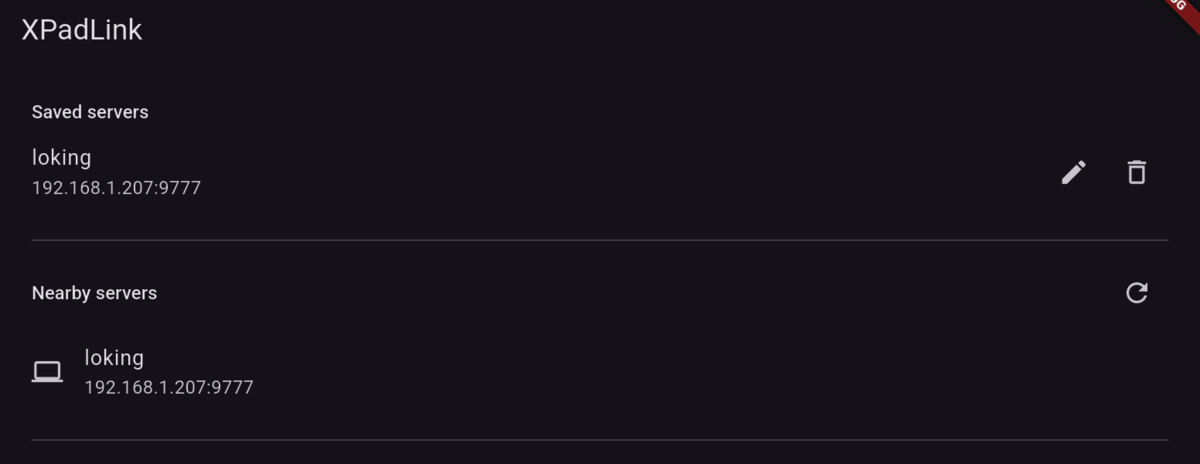
Before: one long list.
I didn’t start in Flutter. I built a clickable HTML mockup first, so I could change my mind cheaply: Connect opens the game view, the eye hides the controls, Back returns to the servers. Then I built it for real.
The colors all come from the logo: the violet glow, the cyan of the Wi-Fi arcs, the lime for the one action that matters, and the four ABXY colors from the little pad. The fonts are bundled in the app, so it looks right on a phone that only has Bluetooth and no internet.
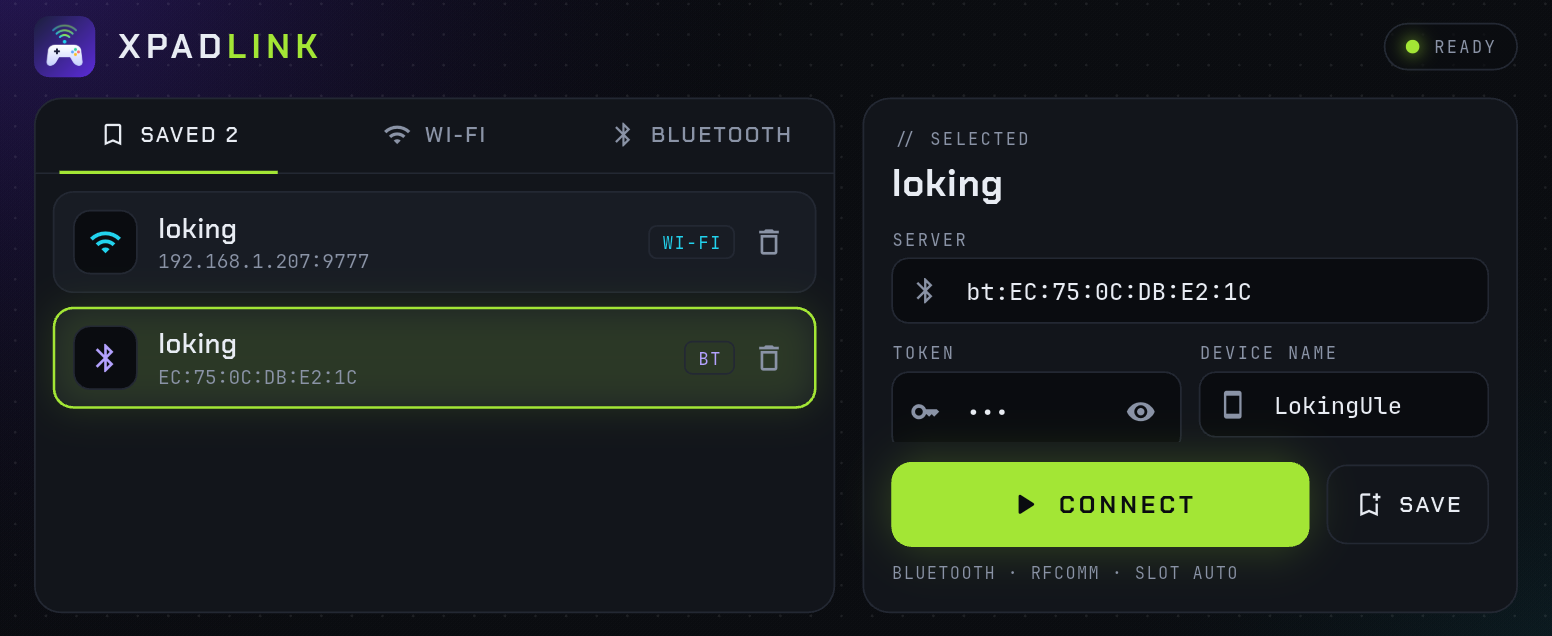
After: three tabs, and a card for the selected server.
The game view got the bigger change. The bottom bar is gone. A top bar now has a Back button, a ring of light for the player slot like the console has, and a chip with the link and the ping.
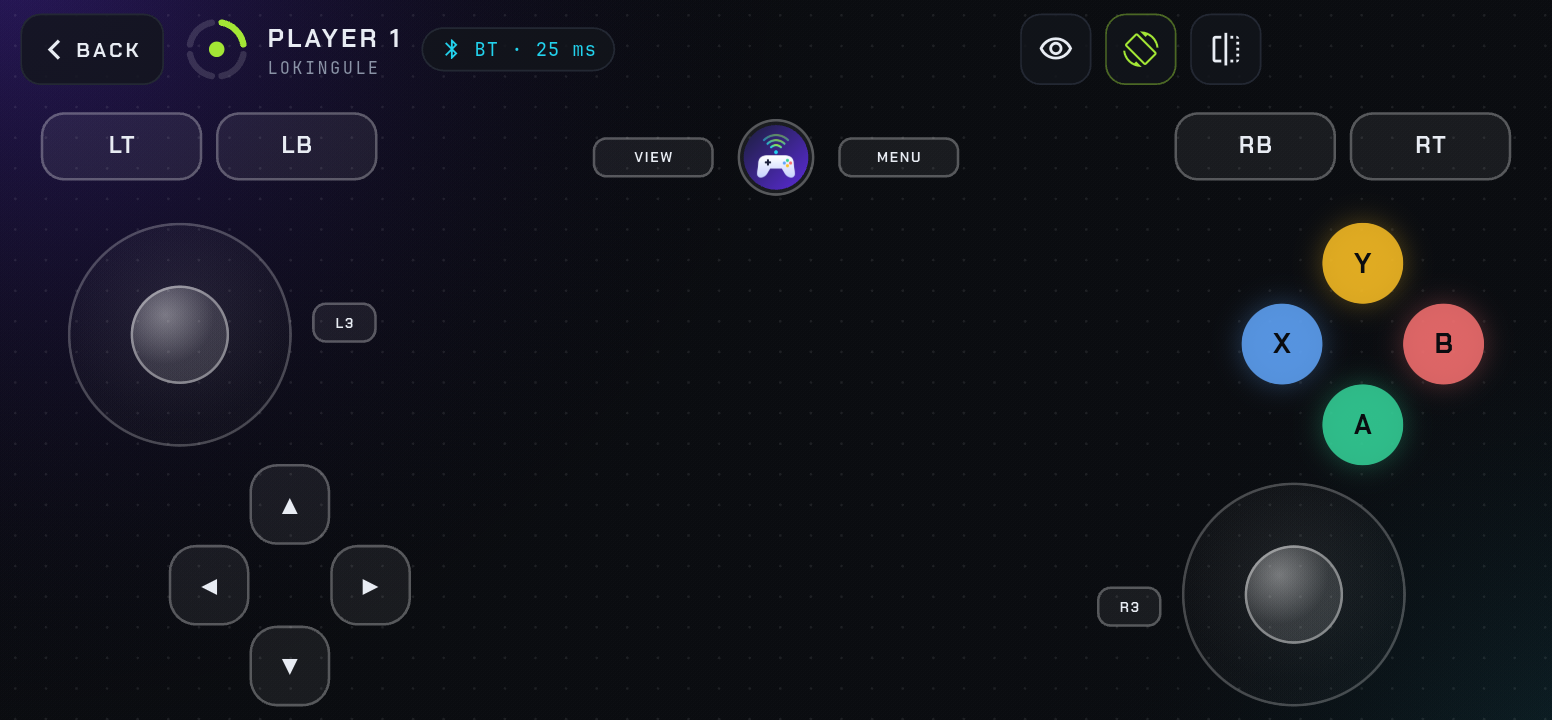
Over Bluetooth, with the ping in the top bar.
The eye hides the touch controls, and it also happens by itself when you plug in a real pad. That view used to be a black screen with a tiny status line. Now it shows the logo, which pad is live, and its stick values, so you can see that the pad works.
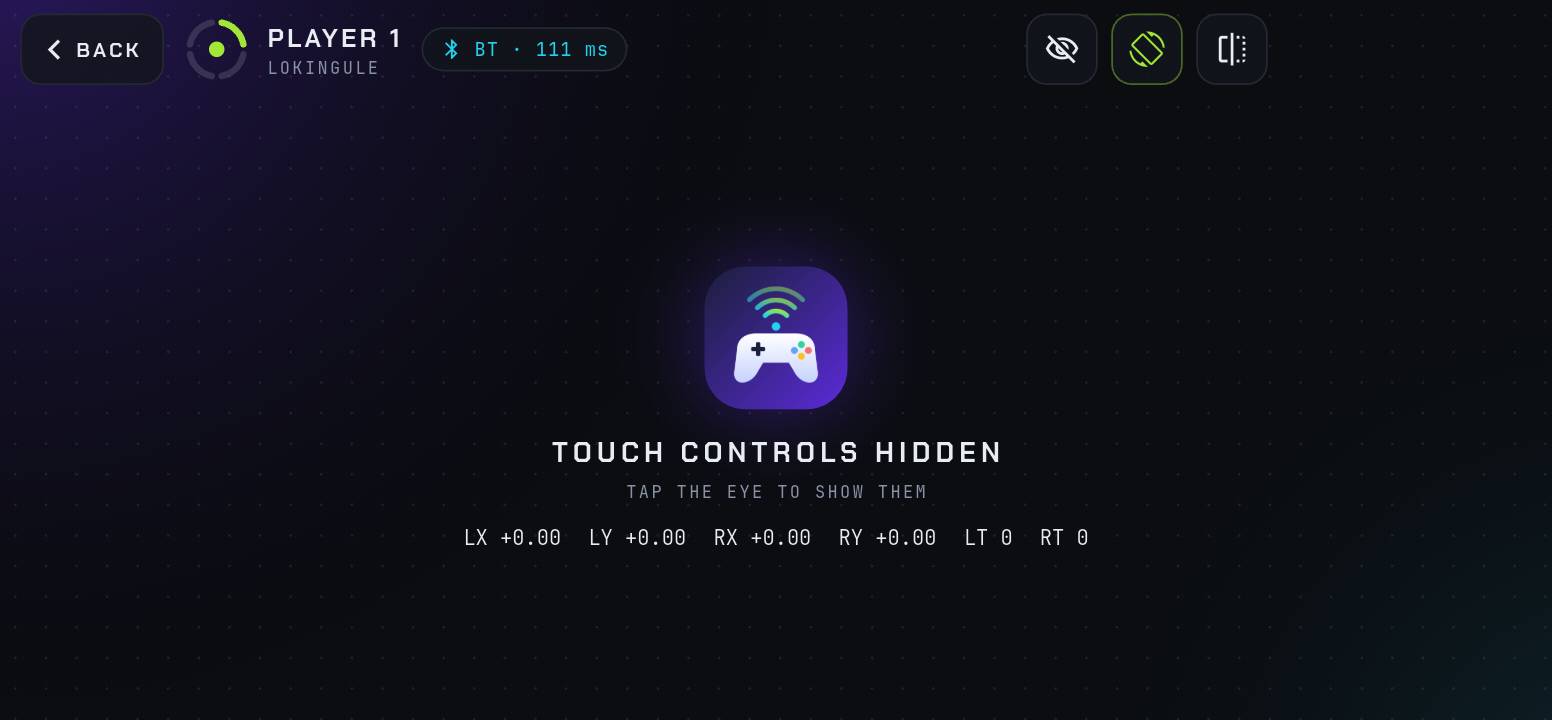
Controls hidden, Back and the eye still in reach.
Try it
Pair the phone with the PC once, in the Bluetooth settings of both. Start the daemon, and it says bluetooth listening. Then in the app: Bluetooth tab, Show paired devices, your PC, Connect. If it still fails, bluetoothctl trust <phone-address> on the PC is the first thing to try.
v0.3.0 has the server binaries and the APK on the releases page. The code is at github.com/josuebrunel/xpadlink.
What I know and what I don’t
Bluetooth works for connecting, input and rumble. The ping is higher than on Wi-Fi: I saw 25 to 110 ms over Bluetooth and about 35 ms over Wi-Fi, and part of that is the Android bridge. At home I’d still pick Wi-Fi. I haven’t tried Cemu’s motion over Bluetooth yet, and I haven’t tried two phones on Bluetooth at once. The server side is Linux only, because BlueZ is the only backend.
I started the day with a phone that needed my Wi-Fi, and I ended it with one that only needs to be paired once. The pad that clips to the phone, the phone that talks to the PC, and no router in the middle.